
Unlocking Your Gimkit Code: Complete Guide for Students
Introduction
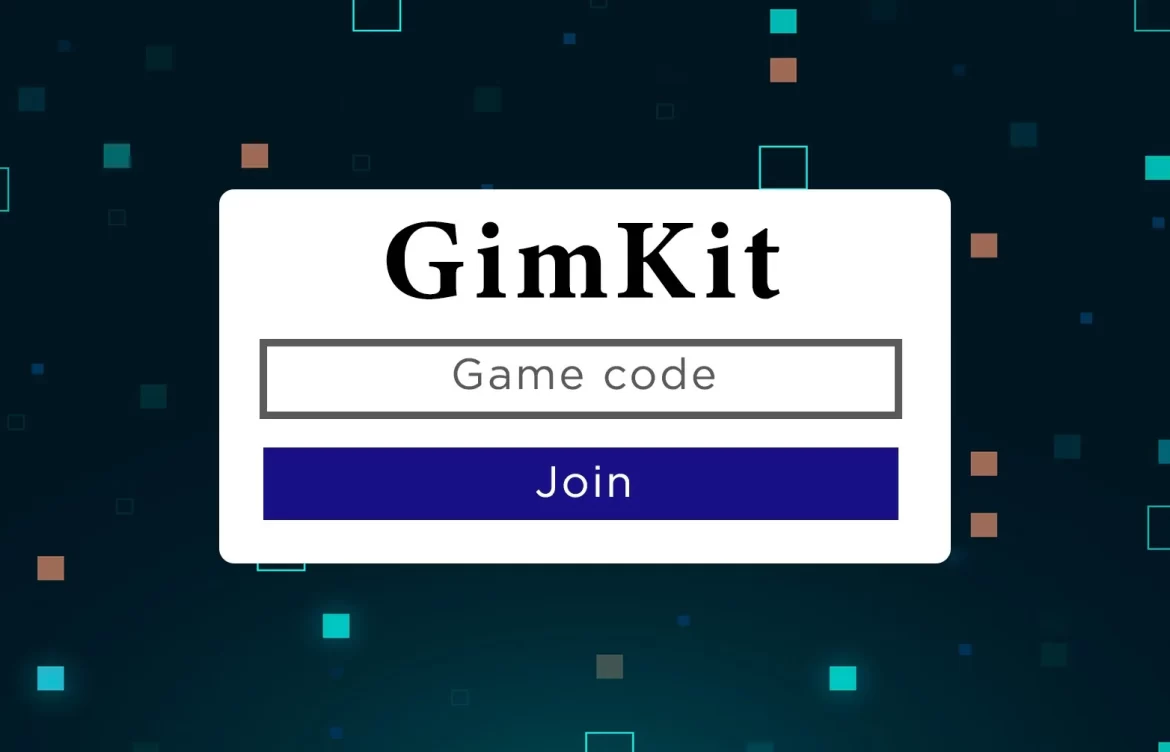
If you’re stepping into a classroom or virtual learning session using Gimkit, one of the first questions you’ll encounter is: “What’s the code?” A Gimkit code is the access key that allows students and participants to join a live game session hosted by a teacher or peer.
While it seems simple, understanding how it works, how to join a game, how teachers generate it, common issues, and best practices ensures a smooth experience for everyone.
This guide covers all aspects of Gimkit codes—what they are, how to use them, common problems and solutions, and tips for safe and effective gameplay. Whether you’re a student logging in from home, a teacher running a classroom session, or a participant in a hybrid environment, this article gives you everything you need to know to master Gimkit codes.
1. What is a Gimkit Code?
A Gimkit code is a short alphanumeric string generated whenever a host launches a live game. It acts as a temporary access key: anyone who enters the code can join that specific session. The code is unique to the game and usually expires when the session ends.
For example, a teacher may launch a quiz and display a six-character code on the screen. Students then enter this code on the Gimkit join page to participate. Codes prevent unauthorized access, ensuring only intended participants can join the game. Each session generates a new code, so even if someone knows a previous code, they cannot reuse it for a new game.
Understanding the role of Gimkit codes is essential for both students and teachers to avoid confusion, errors, or delays during gameplay.
2. How to Join a Game with a Code (Student / Player)
Here’s a step-by-step guide for students or players:
- Open a browser on your device (computer, tablet, or phone) and go to the Gimkit join page.
- Enter the game code exactly as provided by the host. Pay attention to letters and numbers.
- Input your name or nickname. Some teachers enable nickname filters to prevent inappropriate names.
- Click the Join button and wait in the game lobby until the host starts the session.
- When the host begins the game, you’ll enter the quiz, and the question rounds will start.
Tips for students:
- Double-check the code before submitting to avoid errors.
- Ensure your internet connection is stable.
- If you cannot join, confirm with your teacher that the session is live and the code is correct.
3. How Hosts Generate and Share a Code (Teacher / Leader)
Teachers or hosts play a central role in distributing codes. Here’s how they work with them:
- Log in to your Gimkit account and select the set of questions (Kit) for your game.
- Click Play Live to start a session. Configure game options such as teams, timers, and nickname rules.
- The system generates a unique code for that session, which you display to participants.
- You can also provide a QR code or direct link for participants to join without manually entering the code.
- Share the code privately with your students or group members.
- When the game ends, the code automatically expires, ensuring security.
Best practices for hosts:
- Display codes clearly on a projector, screen, or online platform.
- Enable nickname filters or require real names to maintain decorum.
- Monitor the lobby to track who joins and remove unauthorized participants.
- Enable late joins if needed, but set a reasonable cut-off to maintain game flow.
- Archive results for reporting or review after the session.
4. Common Code Problems & How to Fix Them
Even well-planned games can encounter issues. Here’s a guide to troubleshooting:
| Problem | Cause | Solution |
|---|---|---|
| “Code not found” | Code typed incorrectly or expired | Re-enter carefully, confirm with host. |
| Page not loading | Internet issue or blocked site | Try a different device or network. |
| Not appearing on host list | Name mismatch or required ID missing | Use correct name, check host requirements. |
| Students joining late | Late join allowed or code still valid | Host can disable late joins. |
| Unauthorized players | Code shared publicly | Share codes privately, monitor participants. |
By anticipating these issues, both students and hosts can prevent delays and maintain a smooth gameplay experience.
5. Best Practices for Code Use & Safety
To ensure a secure and engaging learning environment, follow these guidelines:
- Share codes privately: Only give the code to intended participants. Avoid public postings.
- Use nicknames or student IDs: Ensures tracking and prevents misuse.
- Check device compatibility: Verify that participants’ devices can run Gimkit smoothly.
- Explain join instructions in advance: Helps younger or remote learners enter the game quickly.
- Monitor the lobby: Remove unauthorized users or adjust code access if necessary.
- End sessions promptly: Expire codes after the game to maintain security.
- Archive results: Teachers should keep a record for assessment or review.
Following these practices aligns with EEAT principles, establishing trust and expertise while providing a user-friendly experience.
6. Why Codes Matter for Student Engagement
Gimkit codes are more than just access keys—they lower the barrier to entry for students. Players don’t need to remember credentials; they just enter a code and join the game. This simplicity keeps students engaged and focused on the quiz rather than technical hurdles.
Codes also allow teachers to manage access effectively. Only intended participants can join, which reduces distractions and maintains fairness. Moreover, the code system supports hybrid learning environments, making it easy for both in-class and remote students to participate seamlessly.
By controlling access and simplifying entry, codes contribute to higher engagement, better participation, and a more enjoyable learning experience.
Read More: Money6x: The Complete Guide to Building Assets, Growing
Conclusion
A Gimkit code may seem like a small element, but it is essential for enabling smooth, interactive learning sessions. For students, entering the code correctly ensures a seamless start to the game. For teachers, generating and sharing codes properly maintains security, organization, and fairness. Understanding how codes work, troubleshooting common problems, and following best practices improves both engagement and classroom management.
With the right approach, the process of joining or hosting a Gimkit game becomes effortless, allowing everyone to focus on learning and having fun. Next time someone asks, “What’s the code?”, you’ll be ready to handle it confidently, making every game session productive and enjoyable.
FAQs
Q1: What is a Gimkit join code and who creates it?
A: A Gimkit join code is a short alphanumeric string generated by the host when a live game is launched. Participants use it to access the game, and it expires when the session ends.
Q2: Where do I enter the Gimkit code as a student?
A: Enter the code on the Gimkit join page. Input your name or nickname, click Join, and wait for the host to start the game.
Q3: Can I reuse a Gimkit code for another session?
A: No. Each live game generates a unique code. Once the game ends, the code is invalid and cannot be reused for a new session.
Q4: What should I do if the Gimkit code isn’t working?
A: Check for typos, confirm the session is live, ensure your internet connection is stable, and verify with your teacher that the code is correct.
Q5: Can anyone join the game if they get the code? How can the host restrict access?
A: Anyone with the code can attempt to join. Hosts can restrict access by sharing codes privately, requiring student IDs, monitoring the lobby, and ending the game after completion.